Vault Designer Menu: The Vault Tab
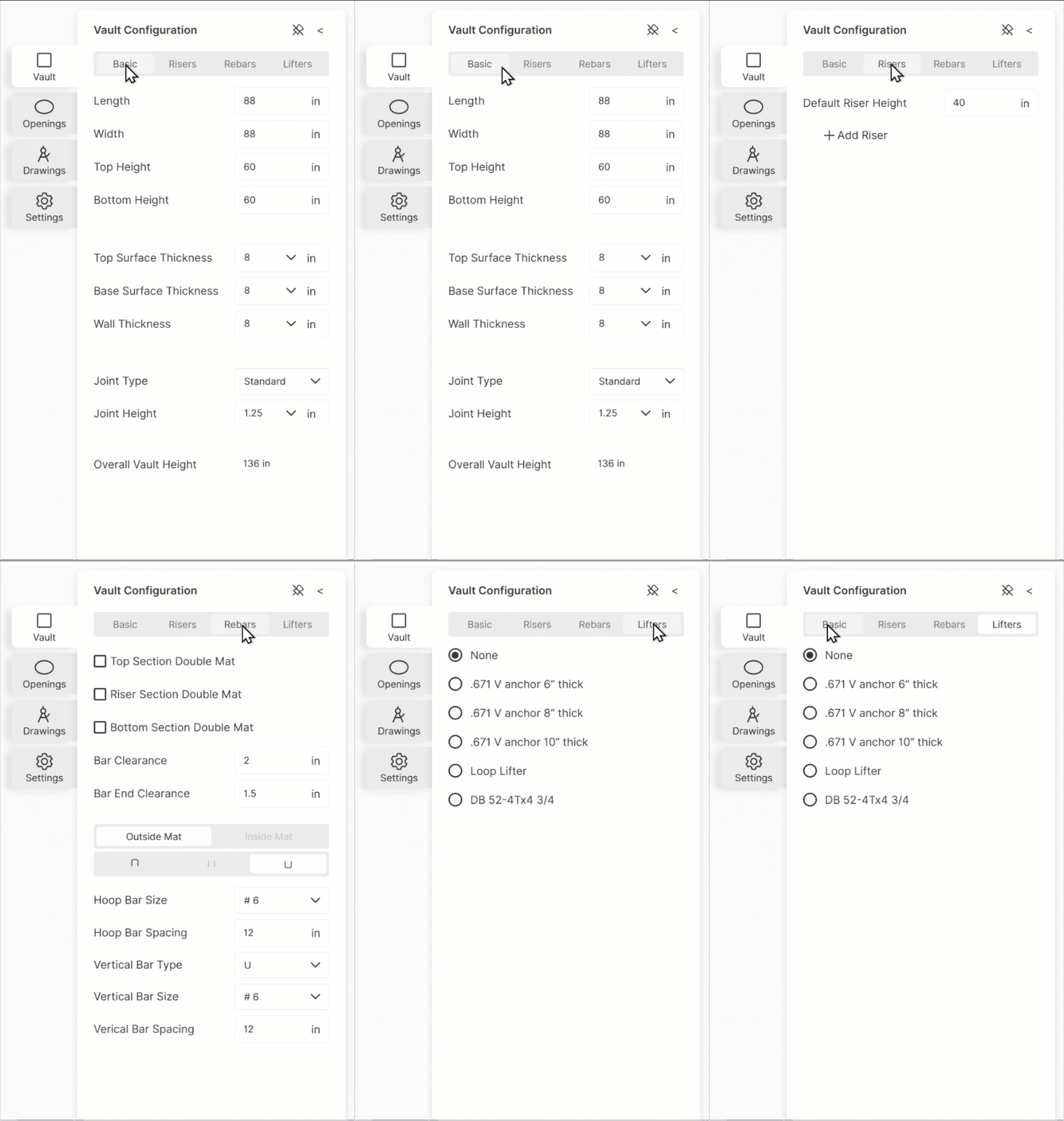
This tab has four sections providing the following functionality, from left to right:
Defining the basic vault dimensions
Adding middle riser sections, if required
Setting up the rebar configuration, and
Adding lifters to the vault
Defining the basic vault dimensions
The basic dimensions are fairly self-explanatory, but keep in mind that the length (X-dimension), width (Y-dimension) and height are measured from the inside edges of the vault. You can see this by using the measuring tool and measuring from outside corner to outside corner.
As shown above the base and top height are 8” resulting in the overall 136”.
There are three options for the joint type between sections, and two choices for the joint height.
Adding riser sections
For a taller vault, you can add any number of Riser sections of whatever height you would like. It’s simple and quick to do.
You can delete any Riser section using the Risers menu.
The Rebars menu
When you activate the Rebars menu, you’ll notice the view change to a partially transparent depiction. This allows you to view the rebar placement and configuration within the 3D vault.
The top part of the Rebars menu has numerous options for configuring rebars, including:
Adding a double-mat to any of the bottom, middle or top sections
Clearance of the rebar and rebar ends from walls of the vault
In the middle of the menu are settings to manage double-mats, by:
Selecting top, middle or bottom
Then choosing to configure either the inside mat or the outside.
In the bottom section, you can manipulate bar size, type, and spacing.
The Lifters menu
This has options for several different types and sizes of lifters. Simply click on the desired option.
(If there is a different type that you need, please let us know and we can add them. Also note that we are working on options for adding lifters to middle and bottom sections. <contact link>