Vault Designer Menu: The Drawings Tab
Here is one of the most time-saving functionalities of the Vault Designer. What might take you an hour of detailing and dimensioning is done in seconds. (Not to mention the time it would take you to manually draw the rebar!)
There are several Drawings that are automatically generated: An overall 'assembly drawing' that shows the entire Vault and shows dimensions for Openings, Terminators, and in the future, additional optional accessories and equipment; and a drawing for any of the Vault sections, such as the Top, the Bottom, and one for any optional Riser that you may have added.
Each drawing includes a Title Block, as shown below, and you have the option for adding specific Order Information.
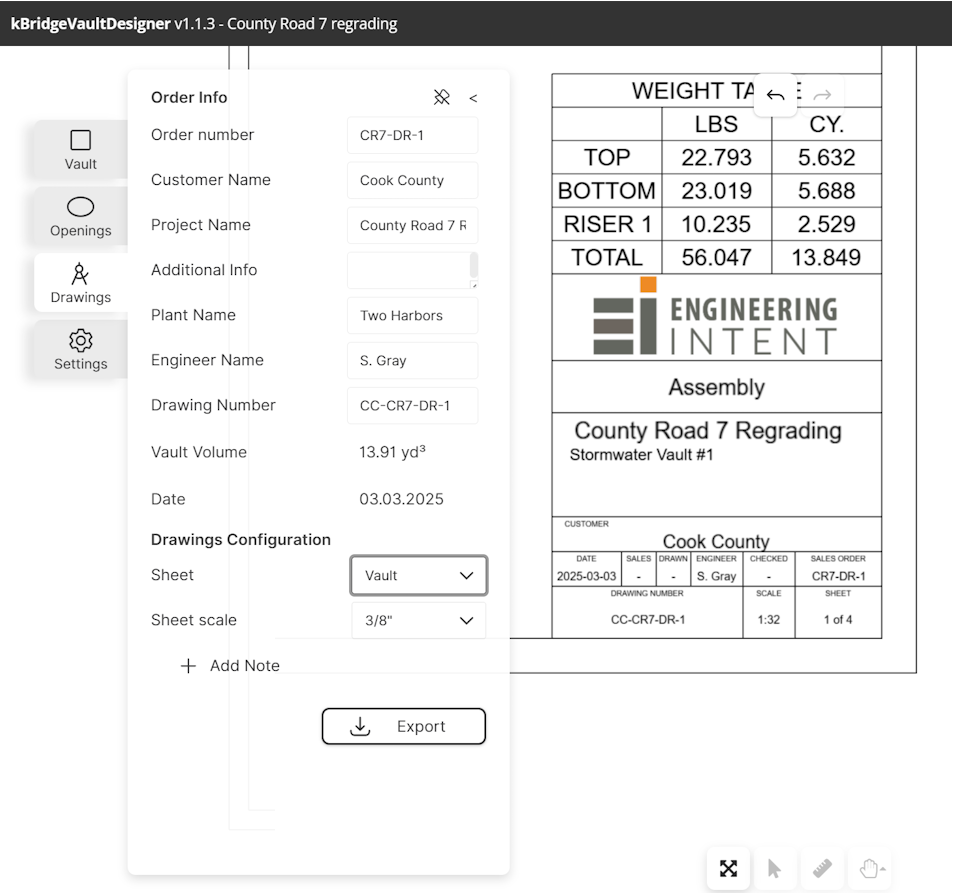
Order Info
The top section of the Drawings Tab provides several Order Information fields, several of which will be reflected in the Title Block. The same Title Block and Order Information appears on any of the automatically-generated Drawings.
As shown above, a company logo can be included. In the future, an Administrator user will be able to upload a logo on the Settings tab. For now, the Engineering Intent logo is a fixed placeholder.
Drawings Configuration
The Sheet Drop-down menu lists several individual Drawings that are automatically generated. By default, the first drawing that is shown is the overall Assembly drawing. This shows the overall Vault dimensions along with dimensions for openings, terminators, and in the future, for other Vault options and accessories.
In the Assembly View (the first of several pages of drawings) a view (an orthogonal projection of the vault) is added for any face that has a feature defined on it (currently openings and terminators). Dimensions are automatically placed. The overall drawing scale is set up based on the number of views shown, the size of the overall vault, and the space required for dimensions. But if you choose to do so, you can select a different scale factor.
You can also add Notes. Simply click the “Add Note” button then enter a Title and Description in the dialog. Once it has been added to the drawing (in the middle of the sheet), you can close the dialog, then drag the note to whatever location you wish.
Right-click to delete or modify any existing note. You can drag a note to a new position at any time.
In addition to the first page showing the overall assembly of the vault, an additional page is added for any section (top, bottom, middle) with detail and depiction of the rebar.
Exporting and Downloading Drawings
You can download drawings in either PDF or DWG format, or both.
Note that downloading files consumes one of your sessions.
Also note that you may need to allow pop-ups the first time you download a kBridge drawing.