Vault Designer Menu: The Openings Tab
When you activate the Openings Tab, the graphics depiction of the vault will change to help you visualize where openings have been placed, and to assist you if you choose to place more, or modify what's already there.
You can place openings: Round, Square or Elliptical. You can also place Terminators. A number of preset Terminator configurations are shown, but you are able to adjust the quantity of rows and columns when you place any Terminator.
It is suggested that you change to a view that is ‘head-on’ to the surface where you are adding or modifying an opening, and that you have chosen the orthogonal rather than perspective view. For information on how to do that, follow this link. The View Cube, as shown below, gives you a quick way to get to a preset view.
To add an opening simply select one of the shape options. As shown below, a ‘target’ will appear in the middle of a face. After dropping the opening, you can drag it and modify its size. Zooming in helps to manage the dimensions, which drag in half-inch increments.
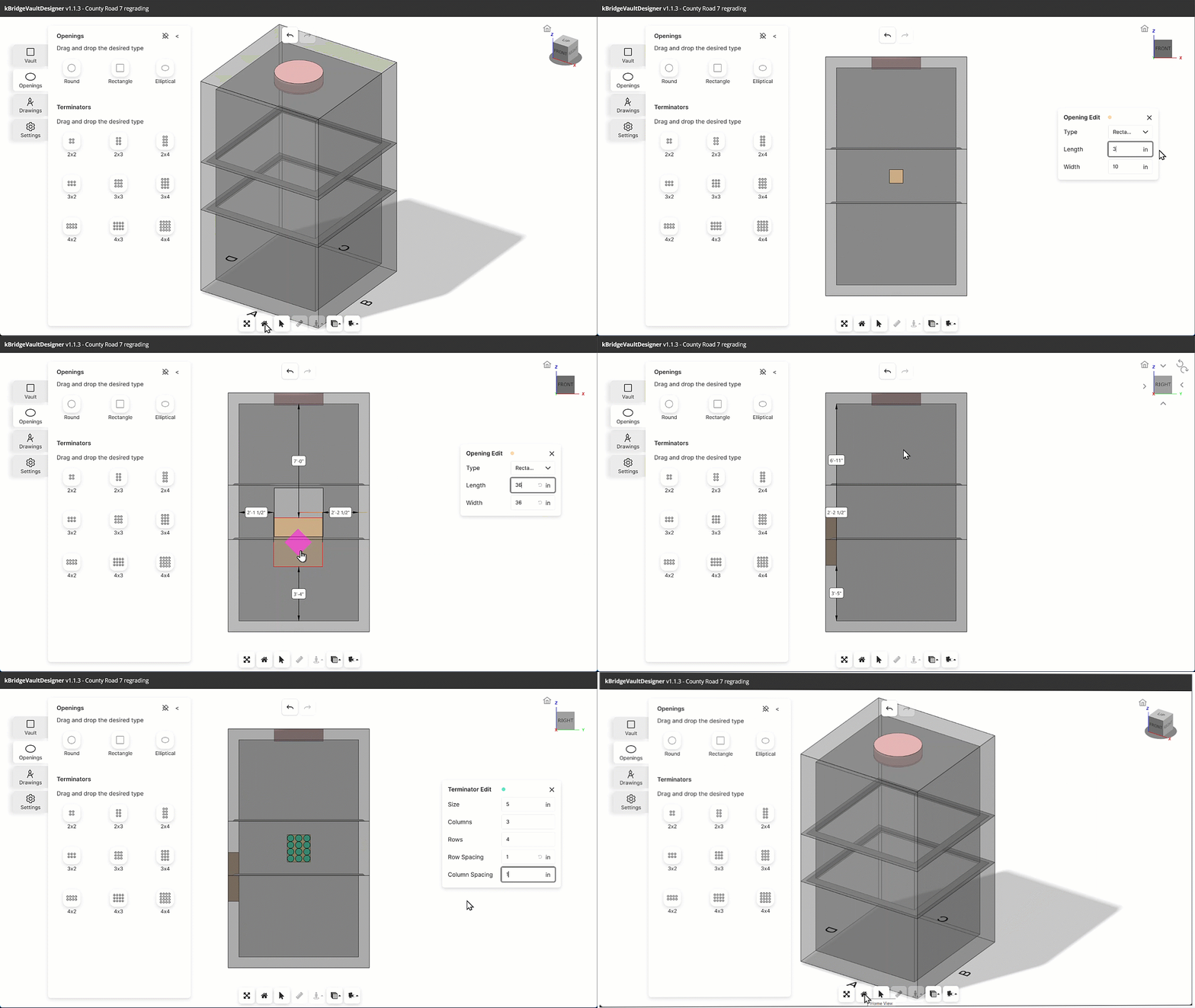
Use the select tool to pick an existing opening. Right-clicking will bring up a menu for deleting or modifying the opening characteristics.