
Welcome to Kbridge.Design, your platform for running and managing design configurations with downloadable engineering outputs. This guide walks you through everything you need to get started—from registration to running configurations and managing sessions.
Registration
To begin using kBridge.Design:
Visit the Registration Page.
Fill in your name, email address, and a secure password.
Click Register.
A confirmation email will be sent to your inbox.
Login
Head to the Login Page.
Enter your registered email and password.
Click Login to access your account.
If you forget your password, click on “Forgot Password” to initiate a password reset.
Account Confirmation
Before you can fully access apps, you must confirm your account via the email sent during registration.
Check your inbox (or spam folder).
Click the link in the email to confirm your account.
If you did not receive an account confirmation email, please write to us at apps-support@engineeringintent.com for assistance
Password Reset
If you've forgotten your password:
Go to the Login Page.
Click "Forgot Password".
Enter your registered email.
You'll receive a link to create a new password.
Accessing/Running an App on kBridge.Design
To use an app on kBridge.Design, a user can take one of three possible routes:
Free Trial
Create an Organization
Join an Organization
For each application on kBridge.Design (e.g., Structure Designer, Coil Designer, etc.), users are required to either start a free trial or submit an access request on behalf of their organization.
Once access has been granted, users can navigate to the application's page and click the "New Configuration" button to begin. They can then enter the required information and save the configuration accordingly.
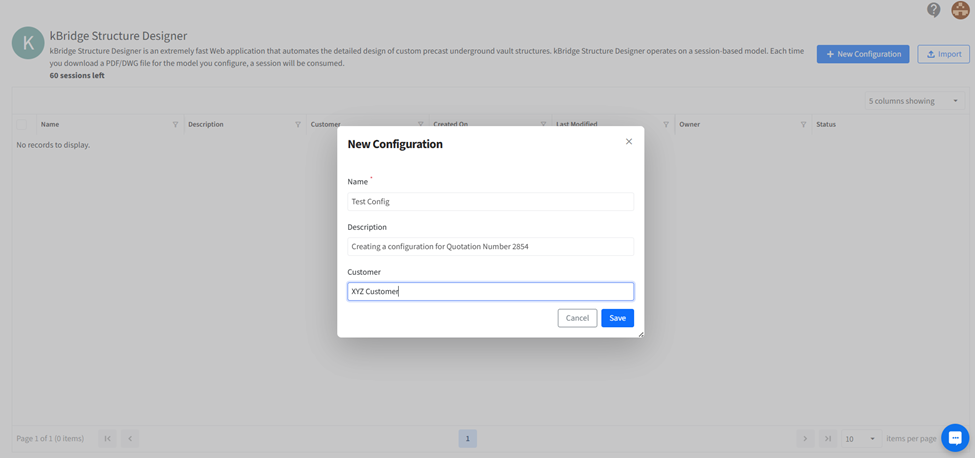
This action creates a new configuration (also referred to as a line item) in the configuration table.
To run a configuration, users can click the play icon located in the rightmost column.
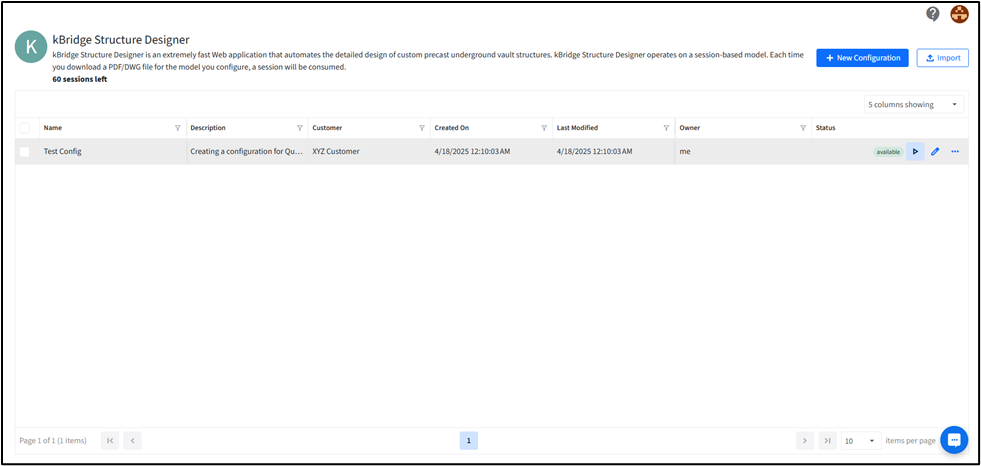
The configuration process may include customizing parameters such as dimensions, openings, or risers (for example, in the Vault application). Users can save their progress and return later to view, edit, copy, export, or share the saved configurations.
Please note: Creating or running a configuration does not consume a session. A session is only deducted when an output file (e.g., PDF or DWG) is exported for a specific configuration.
Free Trial Details
The free trial grants approximately 50 sessions.
You can create and run configurations during the trial.
Sessions are only consumed when you download DWG or PDF outputs.
Once your free sessions are used up, you will need to purchase more (only possible if you are part of an Organization).
What Are Sessions?
A session is a unit that allows downloading DWG or PDF outputs from a configuration.
Running a configuration does not consume a session.
Only the act of downloading outputs (DWG/PDF) deducts a session from your balance.
Sessions ensure fair and scalable usage of the platform’s resources.
Buying More Sessions
Only users who are part of an Organization and have Admin rights can purchase more sessions.
To buy sessions:
Join or create an Organization.
If you are the Admin, navigate to the Organization dashboard to buy additional session packages.
Purchased sessions are shared across the Organization.
Organizations on kBridge.Design
kBridge.Design allows collaboration through Organizations, enabling teams to share resources, manage access, and control usage efficiently.
Creating an Organization
When you create an Organization, your email is designated as the Organization Admin.
Admins have the following capabilities:
Run and manage configurations.
Purchase sessions for the Organization.
Invite new users to join.
Approve or reject membership requests.
Monitor individual session usage.
Delete the Organization if needed.
Joining an Organization
To join an existing Organization:
Enter the Admin's email ID to send a membership request.
Once approved by the Admin, you’ll be able to:
Create your own configurations
Use the Organization's session to download outputs as long as the Organization has sessions available.
Access shared configurations
Sharing Configurations
Configurations can only be shared among members of the same Organization.
Admins have full visibility and access to all configurations created within the Organization.
Regular members can:
View only their own configurations.
Access configurations that have been explicitly shared with the Organization.
Share their own configurations with the Organization, if needed.
This ensures a secure and controlled environment where design assets are only visible and accessible to authorized team members.